Reports
Reports turns the project's records into files you can send on — to a client, a PMC, or head office. Each report is a card: set the period and format, then export.
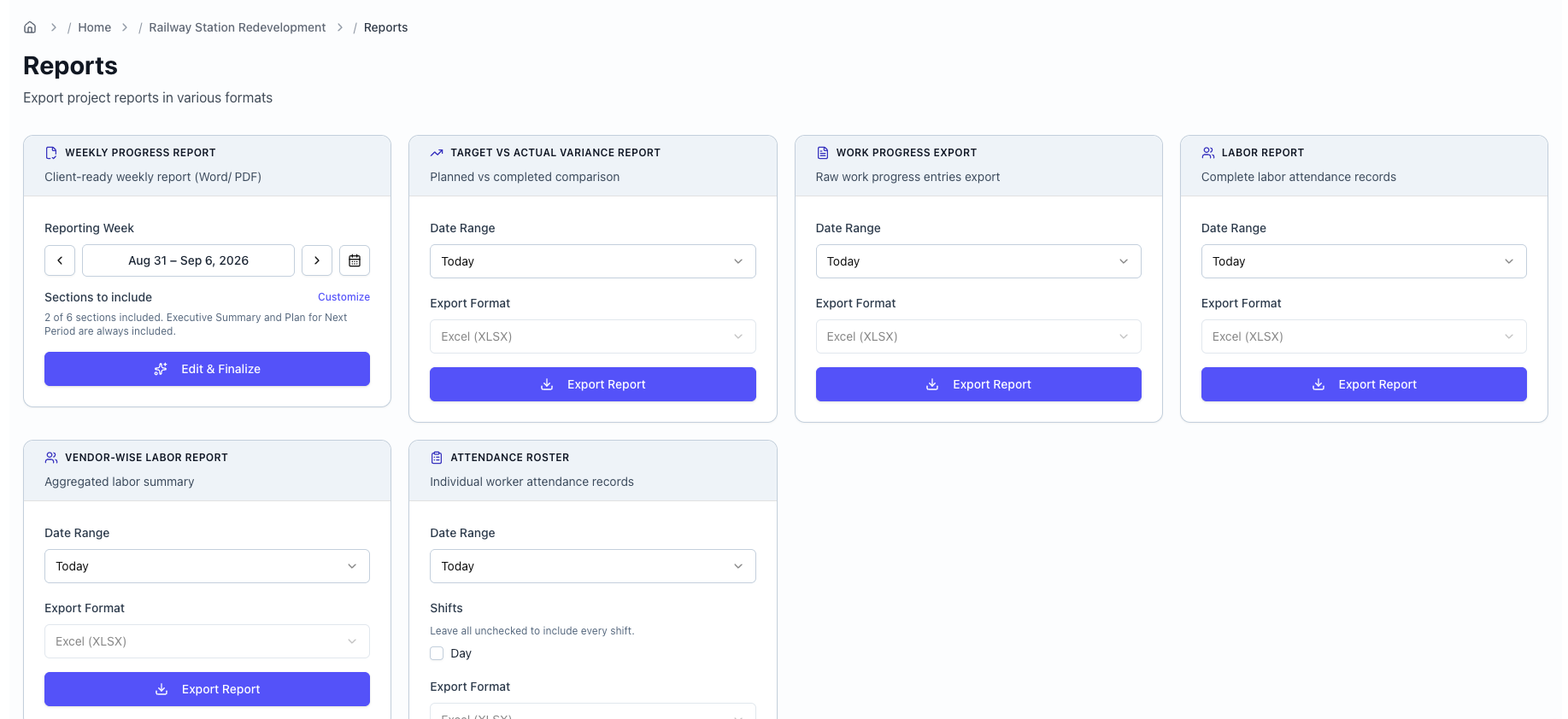
| Report | What it is | Format |
|---|---|---|
| Weekly Progress Report | Client-ready narrative report | Word + PDF |
| Target vs Actual Variance Report | Planned vs. completed comparison | CSV / Excel |
| Work Progress Export | Raw work-progress entries | CSV / Excel |
| Labor Report | Complete labor attendance records | CSV / Excel |
| Vendor-wise Labor Report | Attendance aggregated by vendor | CSV / Excel |
| Attendance Roster | Individual worker attendance records | CSV / Excel |
For the export reports, pick a date range (Today, Last 7 days, Last 30 days, or a custom range), choose CSV or Excel, and click Export Report. The file downloads and a confirmation shows the row count and filename. The Attendance Roster also lets you filter by shift.
Weekly Progress Report
The one report you hand to a client. It's assembled for you and you finalise it.
1. Pick the week and sections
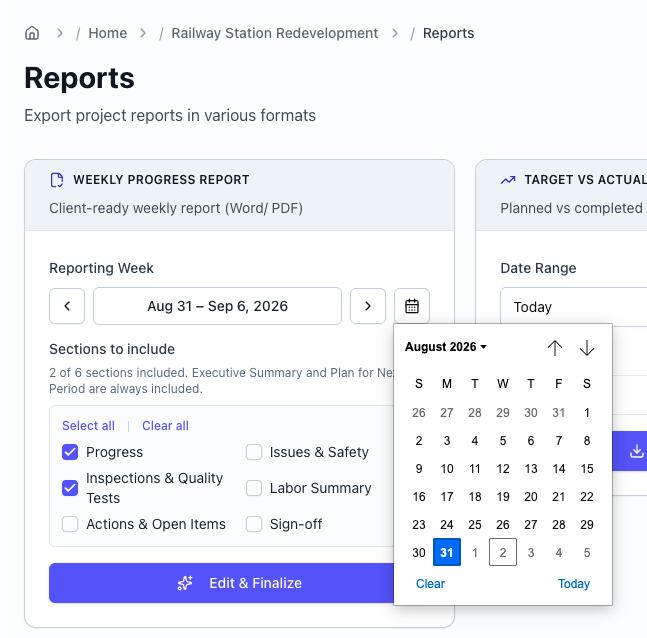
Use the week picker to choose the reporting week. Then choose which sections to include:
- Executive Summary and Plan for Next Period are always included.
- Progress and Inspections & Quality Tests are on by default.
- Issues & Safety, Labor Summary, Actions & Open Items, and Sign-off are opt-in — click Customize.
2. Edit & Finalize
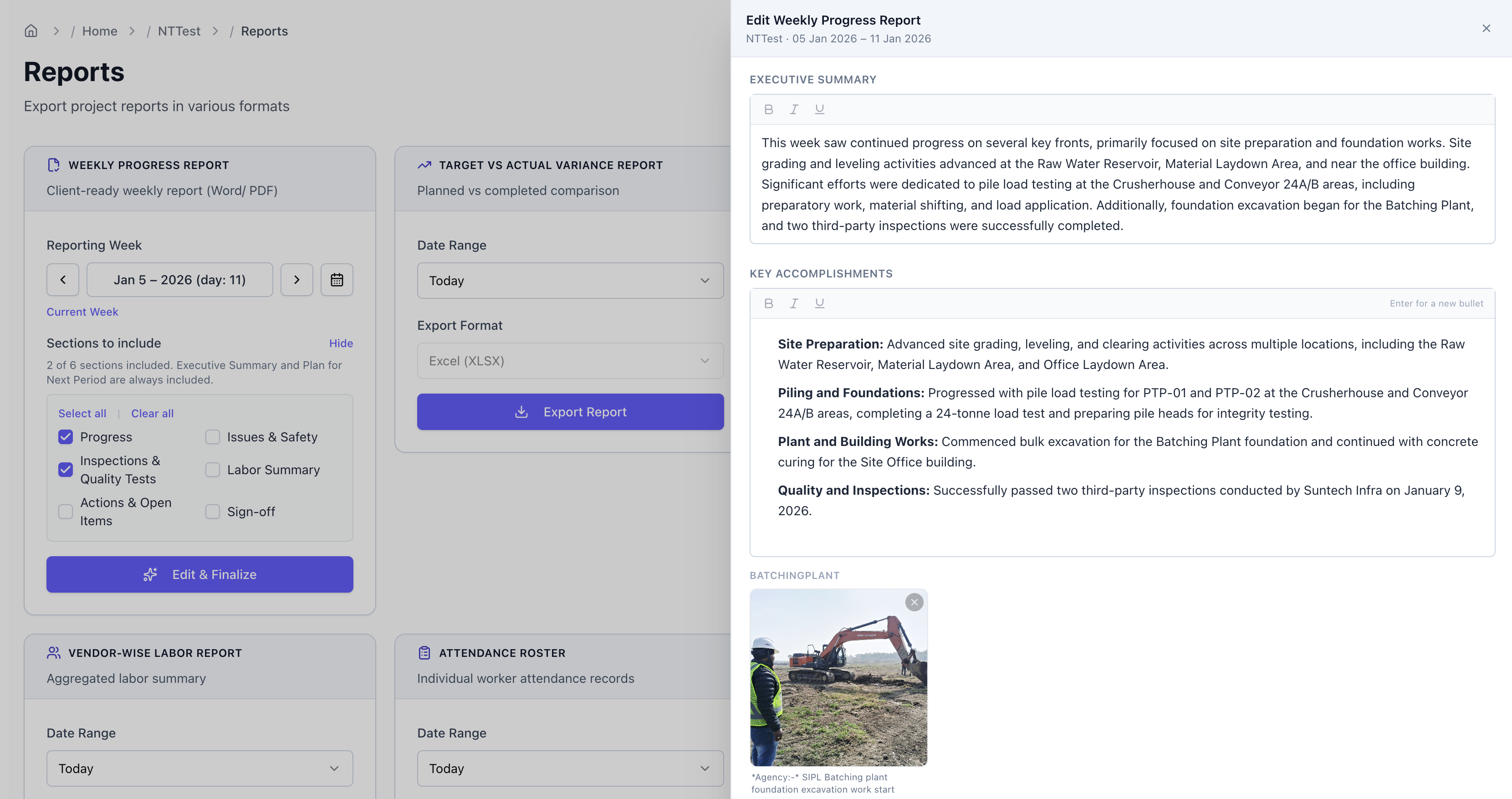
Click Edit & Finalize to open the editor. Velora drafts each section from the week's records:
- Executive Summary — a short paragraph on the week.
- Key Accomplishments — one bullet per item of work completed, with the site photos attached to those updates.
- Issues & Safety, Inspections & Quality Tests, Actions & Open Items — a bullet each, with their photos.
- Labor Summary — total workforce and headcount by trade (reference only).
- Plan for Next Period — one bullet per planned item.
Every section is editable. For photos you can drop ones that shouldn't go to the client, edit captions, and restore site photos that were sent to WhatsApp but never tagged to a specific update.
3. Generate the file
Click Save & Finalize. Velora renders your edited version to Word and PDF, and download buttons for both appear in the editor. Re-finalise any time to regenerate with further edits.
Need a different report?
Use Request a report at the bottom of the page to describe a custom export or a different layout — add a title, a description, and optional attachments. The Velora team reviews it and follows up.
What's next
- Execution → — where the records that fill these reports come from
- Site Pro on mobile →