How Site Pro is organized
Your account is set up by the Velora team — work fronts, taxonomy, users, WhatsApp groups, AI follow-ups and reminders are all configured with you during onboarding. This guide covers day-to-day use once that's done.
If you need a setup change (a new work front, a group re-mapped, a user added), contact your Velora point of contact or support@velora.ai.
Workspace and projects
| Term | What it is |
|---|---|
| Workspace | Your company. It holds your subscription, team members, AI settings, and WhatsApp connection. You have one. |
| Project | A construction site. Everything you track — progress, issues, deliveries, attendance — belongs to a project. |
Switch between projects using the project selector at the top of the sidebar. The page you're on stays the same — switching from one project's Execution view takes you to the next project's Execution view.
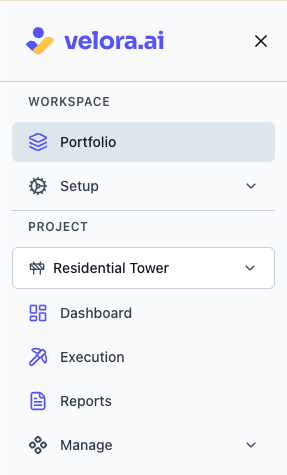
The sidebar
| Section | Item | What it's for |
|---|---|---|
| Workspace | Portfolio | Every project on one screen — health, blockers, targets. Most useful once you run more than one site. |
| Project | Dashboard | A single project's health at a glance. |
| Execution | The working area — every record type, in tabs. | |
| Reports | Export progress, labor, and attendance reports. | |
| Manage | Basic Info · Taxonomy · Contacts · Reminders | Project configuration. Mostly set during onboarding. |
| Setup | WhatsApp Groups · Users · AI Follow-ups | Workspace configuration. Visible to workspace owners and admins only. |
How your data gets here
Your site teams keep updating WhatsApp groups the way they always have. Velora reads those groups and turns each update into a structured record:
- Progress against planned targets, and standalone work done
- Issues and blockers — RFIs, NCRs, hindrances, material and labor shortages, safety, equipment, drawings
- Material deliveries received on site
- Labor attendance by trade and vendor
- Inspections and quality tests
- Scope and design changes mentioned in conversation
Voice notes and photos are processed too, and updates in Hindi, Telugu, Spanish, Arabic and other languages are captured the same way as English.
These records show up in Execution, roll up into the Dashboard and Portfolio, and feed your Reports.
Almost every record has a View source messages link. It opens the exact WhatsApp messages the record was extracted from — including the sender, timestamp, and any photos or voice notes. Use it whenever you want to check what Velora captured.
Reading project health (RAG)
Work fronts and projects are rated red / amber / green:
| Status | Meaning |
|---|---|
| 🟢 Green | On track. |
| 🟡 Amber | Behind — overdue issues, or actuals trailing targets. |
| 🔴 Red | At risk — a blocking issue or a blocking inspection is stopping work. |
| ⚪ Grey | Not started — no targets or activity yet. |
A legend card appears on the Dashboard, Portfolio, and the Work Fronts tab.
Work fronts
A work front is a place where work happens — organized into levels (for example Building → Floor → Zone → Grid). Your work-front structure is set up during onboarding to match how your team already refers to locations on site.
Every extracted record is attributed to a work front, either directly or by matching the location mentioned in the message. Records Velora can't confidently place appear under Needs Review in Execution, where you can tag them yourself.
Things that work the same everywhere
- Date filters — most tabs let you scope to Today, Yesterday, Last 7 days, Last 30 days, or All time.
- Refresh — data updates continuously as messages arrive; the refresh icon forces an immediate re-fetch.
- Detail drawers — clicking a row opens a panel on the right instead of navigating away, so you keep your place in the list.
- Manual entry — most data is automatic, but you can also log inspections, action items, and deliveries by hand.
What's next
- Execution → — the working area, tab by tab
- Project Overview dashboard →
- Portfolio Overview dashboard →
- Reports →
- Site Pro on mobile →