Execution
Execution is where every record for a project lives, split into tabs. The tab bar scrolls horizontally; filters for the active tab sit on the top right; clicking any row opens a detail panel on the right without leaving the list.

| Tab | What it shows |
|---|---|
| Calendar | Every planned and completed date across the project |
| Work Fronts | Health, targets, and open items rolled up by work front |
| Progress | Daily progress against planned targets |
| Manpower | Worker attendance and presence on site |
| Issues | Site issues and blockers |
| Action Items | Tasks assigned to close out issues and get work done |
| Inspections | Quality and safety inspections |
| Quality Tests | Formal QC / lab test results |
| Deliveries | Material deliveries received on site |
| Scope Changes | Scope and design changes detected from site chatter |
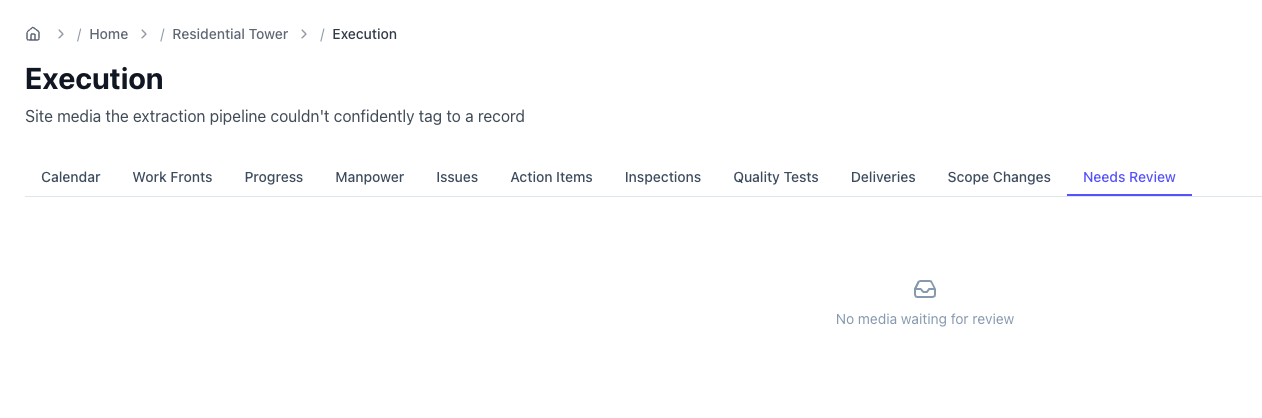
| Needs Review | Media Velora couldn't confidently tag to a record |
Calendar
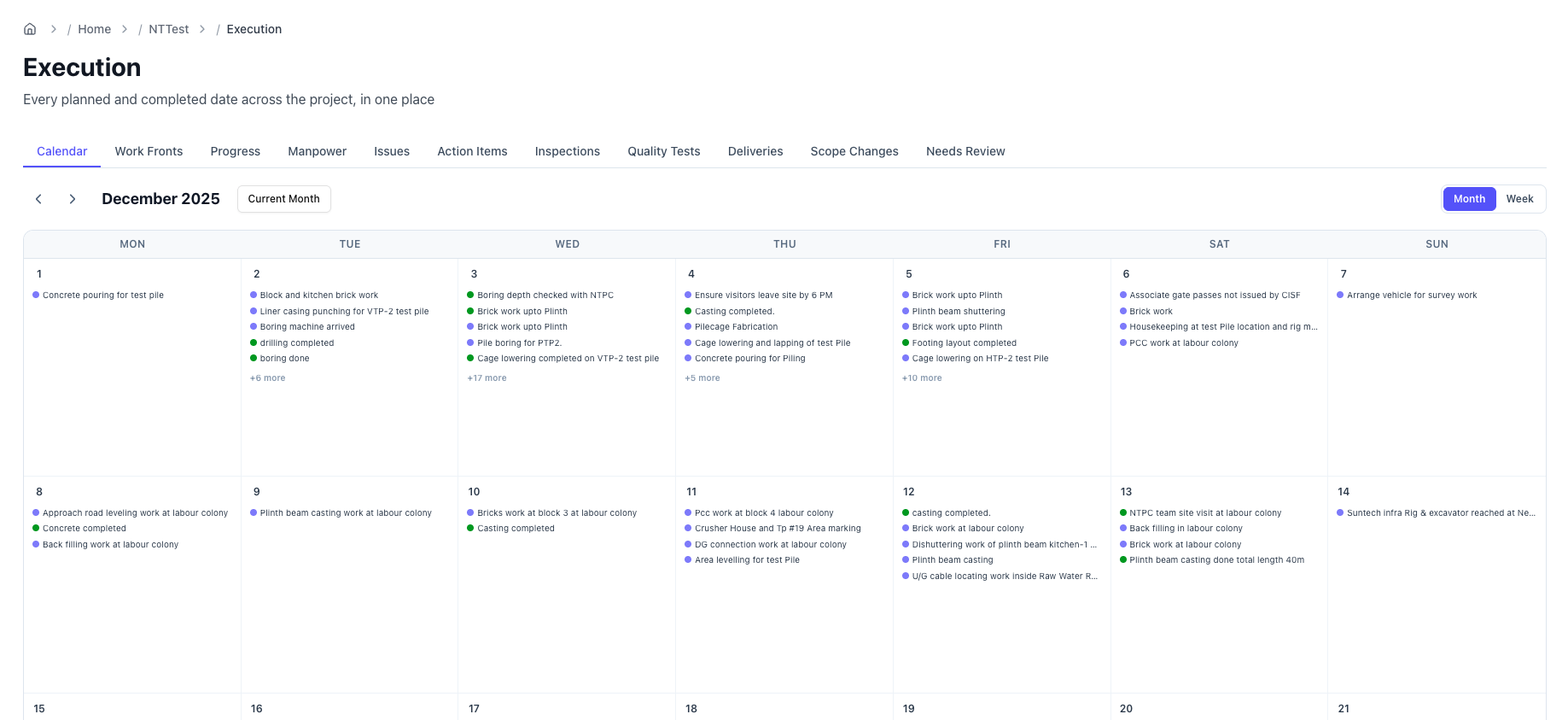
Every dated item on the project — progress entries, issues, action items, inspections, and quality tests — laid out by date.
- Toggle between Month and Week views.
- Step forward and back with the arrows, or jump straight to any month.
- Current Month / Current Week returns you to today.
- Colour tells you state at a glance: purple means not done yet (planned, open, in progress); other colours mean done or closed.
Click any event to open its details — headline, description, work front, status, the relevant date (planned, completed, or need-by), photos, and the WhatsApp messages it came from.
Work Fronts
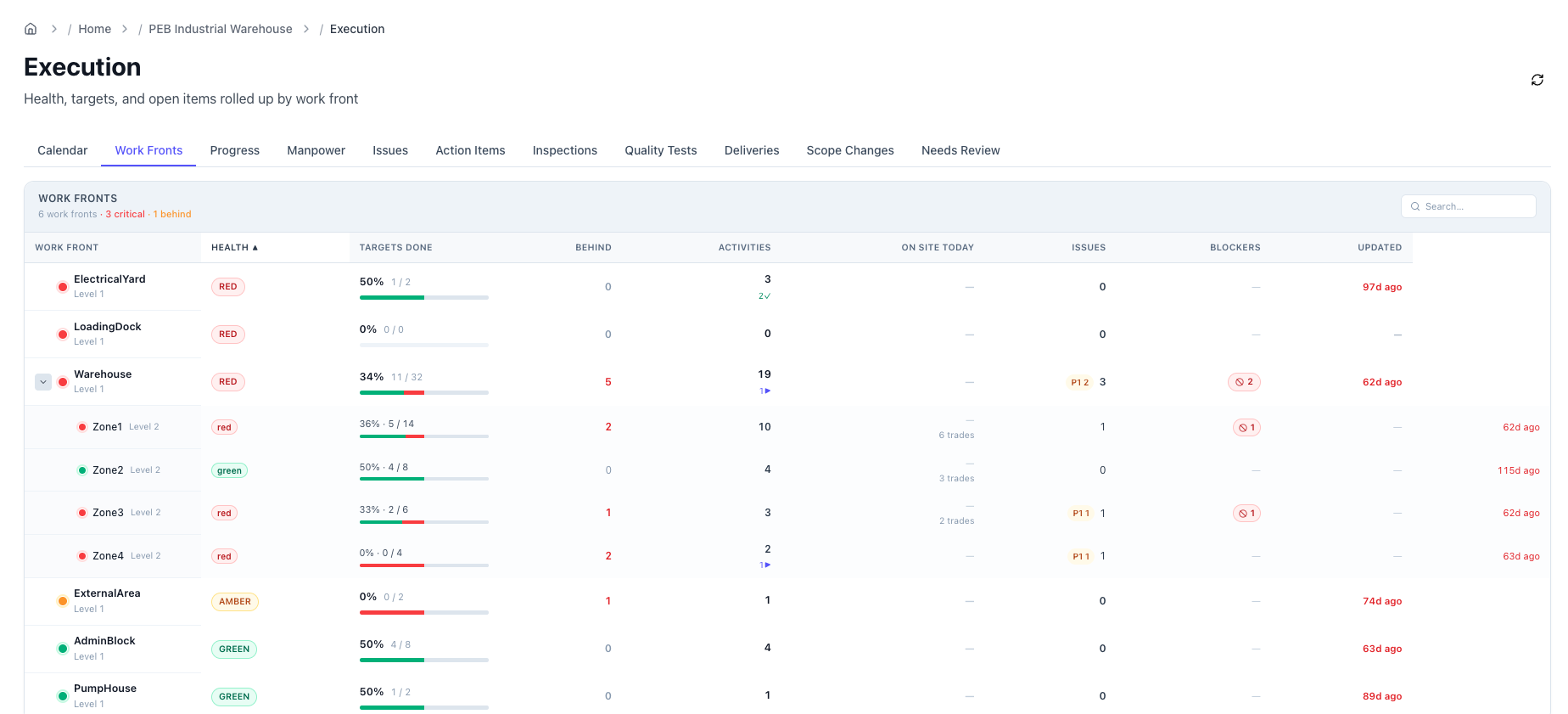
A sortable, expandable table of every work front with its health rolled up from all the underlying records.
Columns: Work front · Health (RAG) · Targets done · Behind · Activities · On site today · Issues · Blockers · Updated
- Expand a row to drill down through the location levels (e.g. Building → Floor → Zone → Grid).
- Search by work-front name.
- Click a work-front name to open the drill-down panel — completion %, open issues, pending and blocking inspections, action items, a sub-level breakdown, and the workforce mix by trade.
Progress
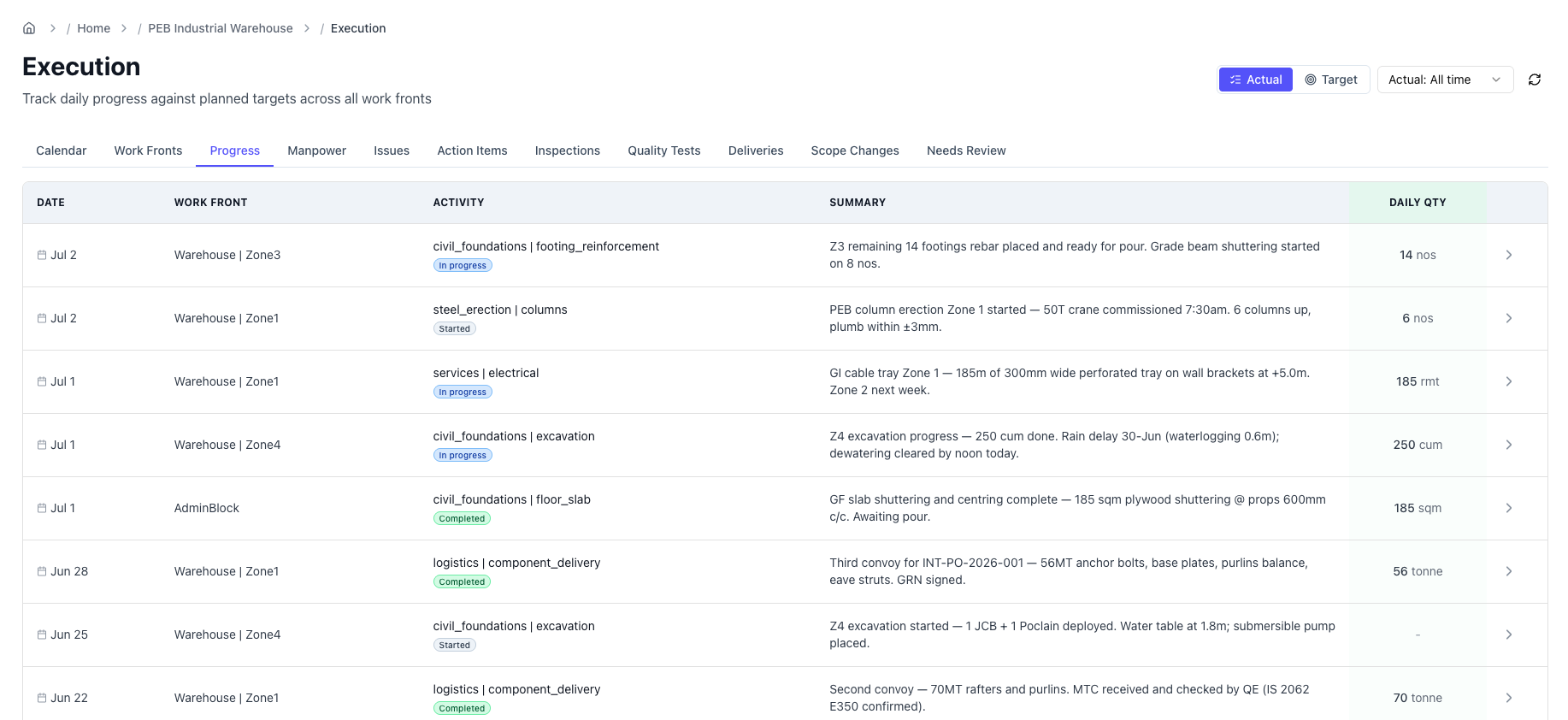
Daily progress against planned targets. Use the toggle on the top right to switch views:
| View | Shows |
|---|---|
| Actual | Every progress entry as it was reported — the daily progress log. |
| Target | One row per planned target, with actual vs. target quantity and the variance. Adds separate target date and actual date filters. |
Click a row to open the entry or target detail — quantities, unit, work front, photos, and source messages.
Manpower
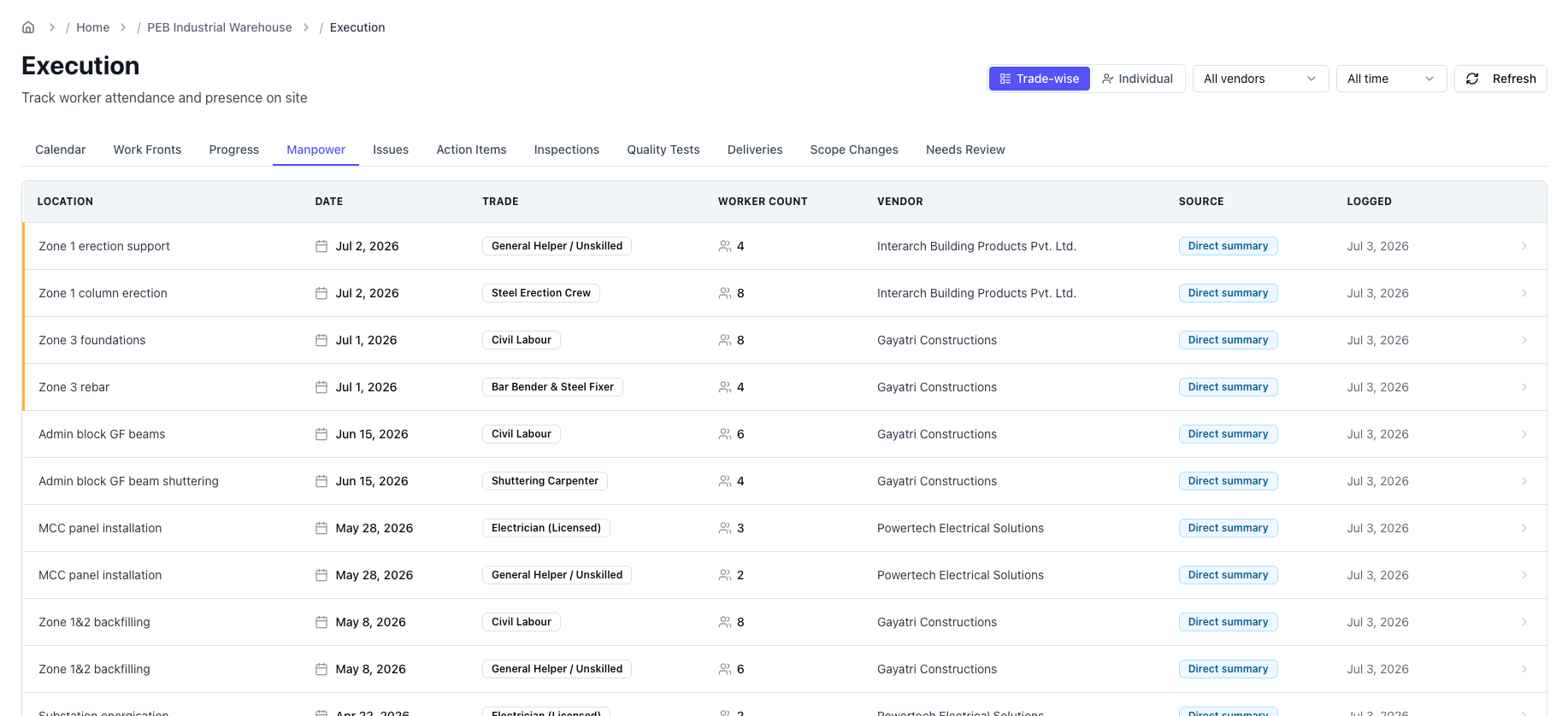
Worker attendance and presence on site, compiled from the groups.
- Summary and roster views.
- Filter by vendor, trade, date range, and status.
- See headcount by trade and by vendor, day by day.
- Correct a day's hours inline if needed.
Issues
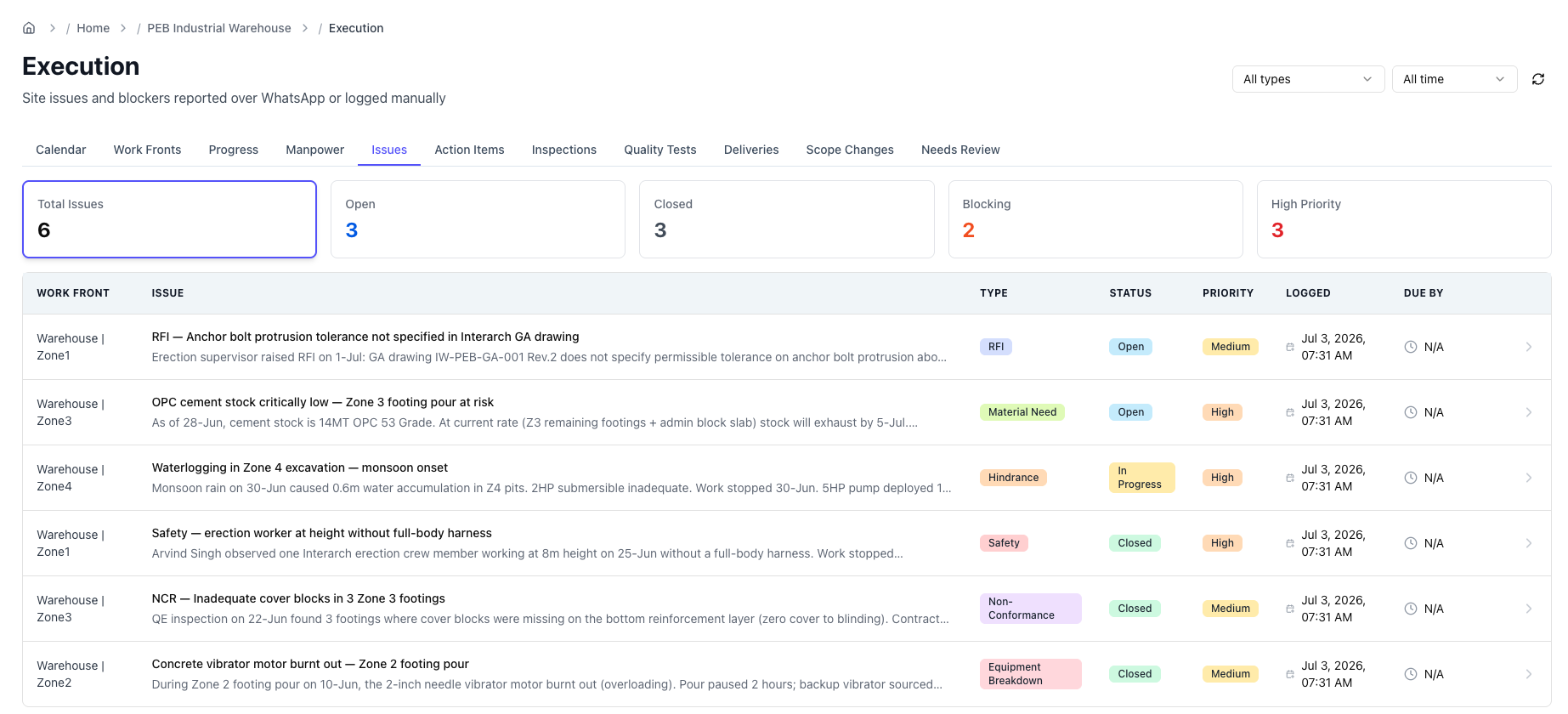
Every issue and blocker reported over WhatsApp or logged manually.
- Filter by issue type (RFI, NCR, Hindrance, Material need, Safety, Labor shortage, Equipment breakdown, Drawing request, Delivery, Other) and by date.
- A row opens the issue detail: title, description, type, priority, whether it's blocking, need-by date, work front, status, photos, source messages, and any linked action items.
- Update an issue's status as it moves toward closure.
Action Items
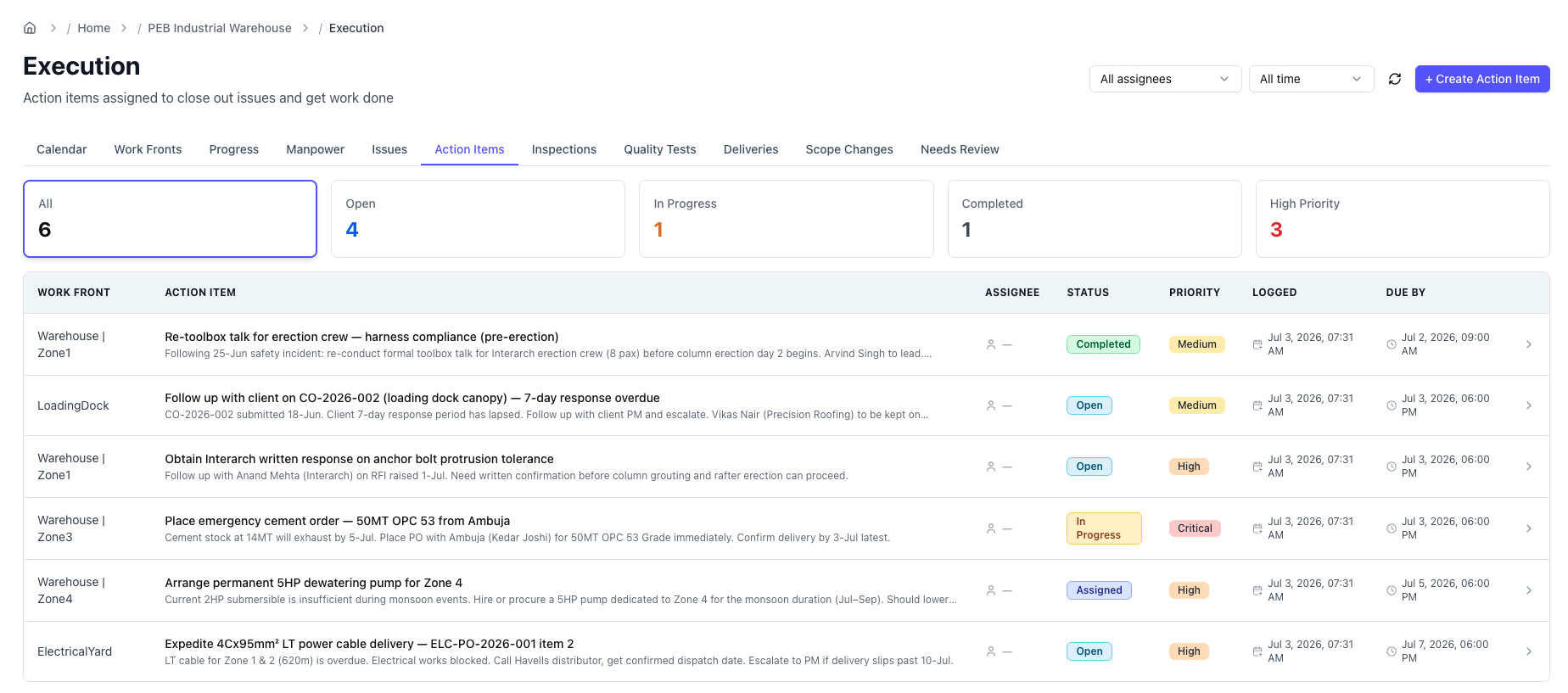
Tasks assigned to close out issues and keep work moving.
- Filter by assignee and date.
- + Create Action Item to add one by hand — description, assignee, deadline, priority.
- A row opens the detail: assignee, deadline, priority, status, the issue it's linked to, and source messages.
Overdue AI follow-ups on open action items are sent back into the WhatsApp group automatically (configured during onboarding).
Inspections
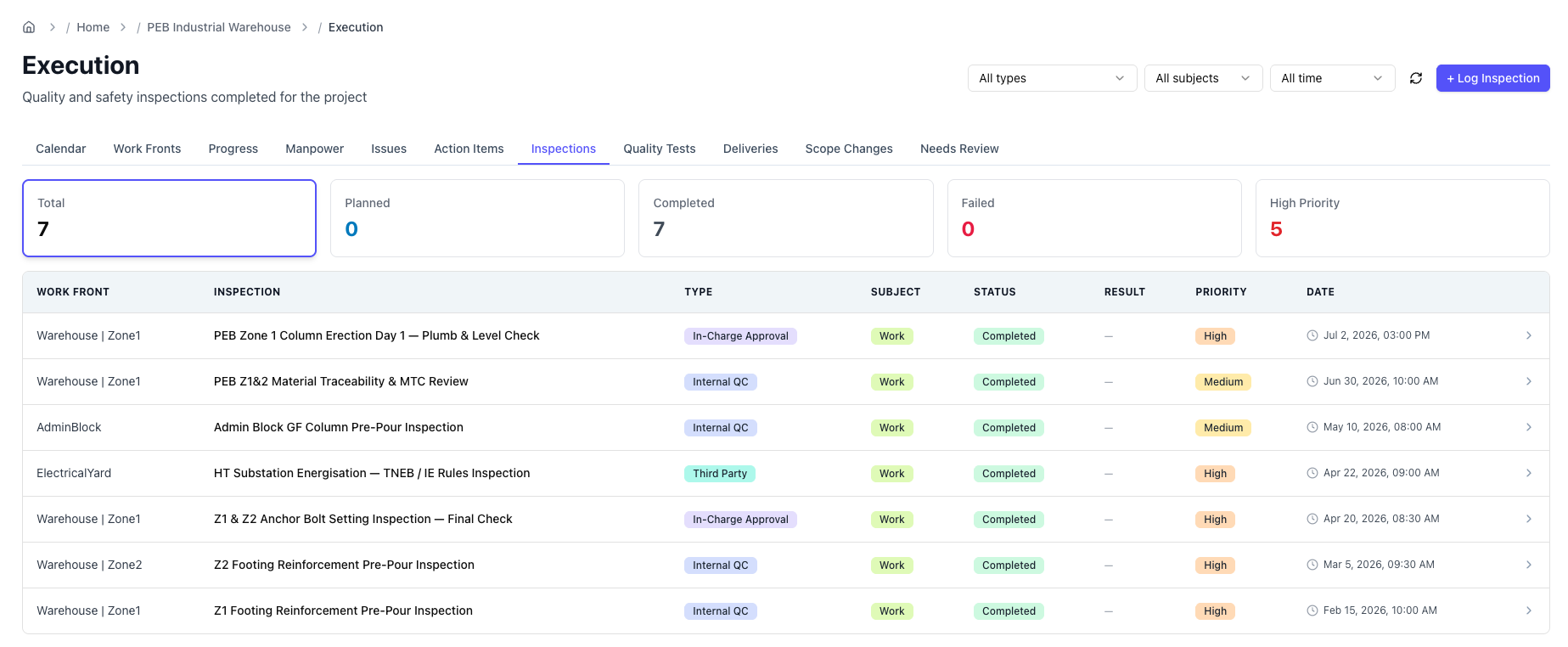
Quality and safety inspections carried out on the project.
- Filter by inspection type, subject, and date.
- + Log Inspection to record one manually.
- A row opens the detail: type, subject, outcome, work front, date, photos, and source messages.
Quality Tests
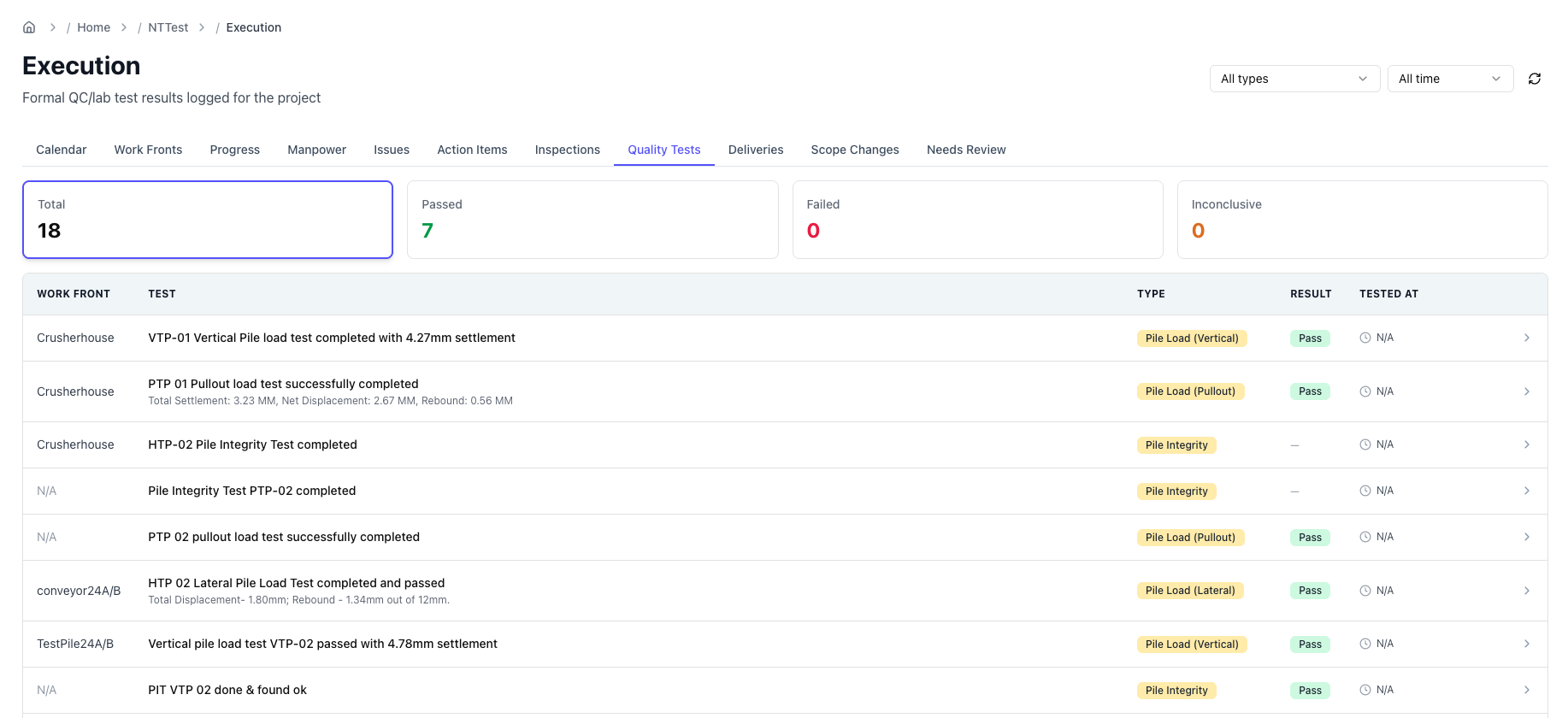
Formal QC and lab test results logged for the project (cube tests, compaction, and so on).
- Filter by test type and date.
- A row opens the detail: test type, result, work front, date, and source messages.
Deliveries
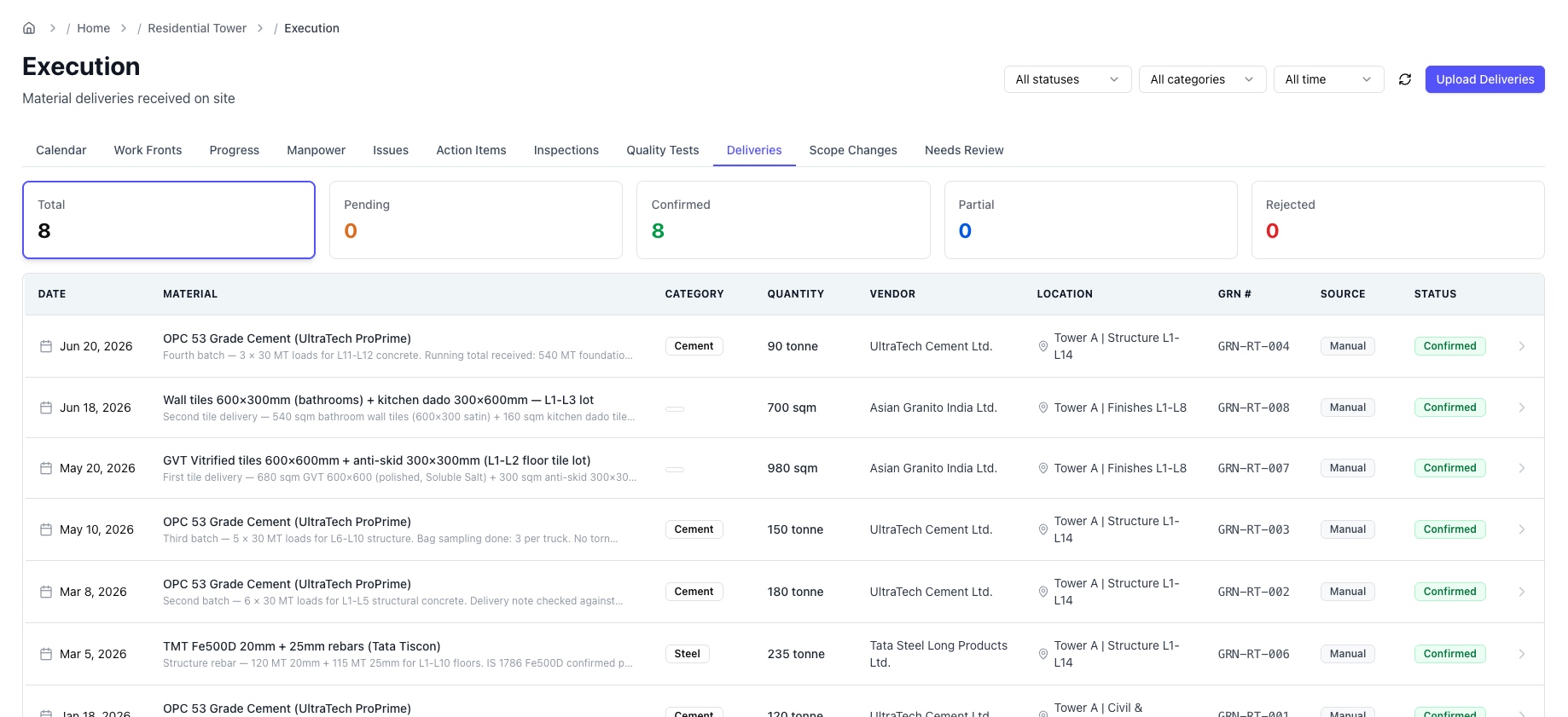
Material deliveries received on site, logged from group messages as they happen.
- Filter by status (Pending, Confirmed, Partial, Rejected), category (Steel, Cement, Aggregates, and so on), and date.
- Upload Deliveries to bring in a batch from a spreadsheet.
- A row opens the detail: vendor, material, quantity, status, date, challan / invoice photos, and source messages.
- If Velora extracts a delivery that matches one already logged, you can merge them so quantities and documents stay on a single record.
Scope Changes
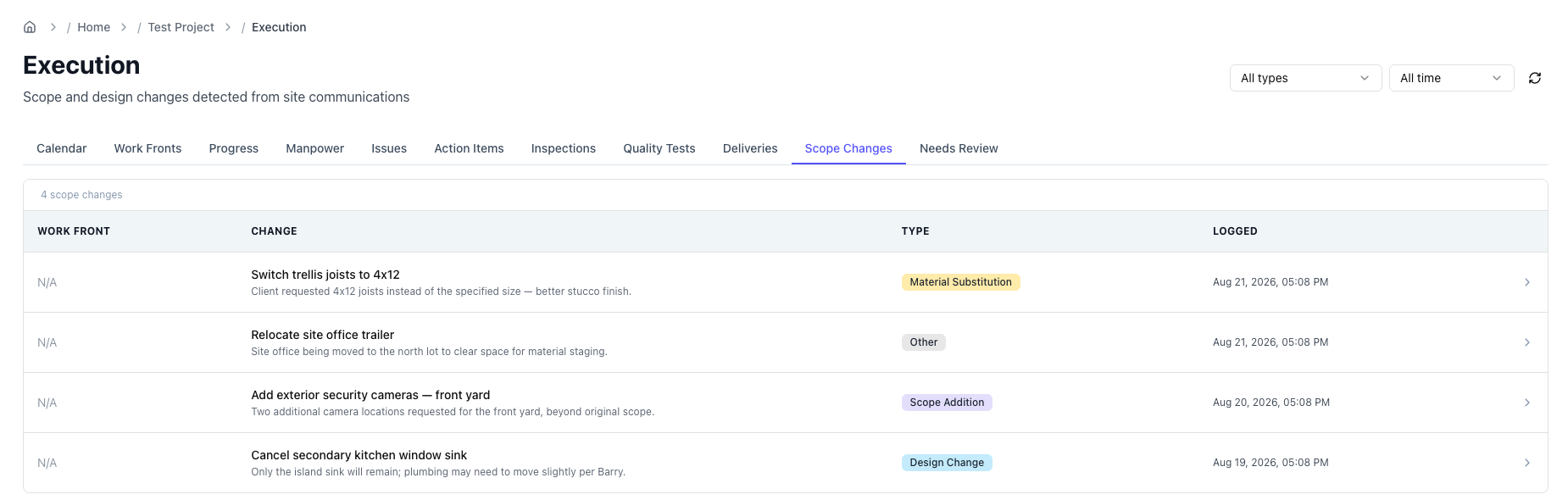
Scope and design changes Velora detects in site communications — revised drawings, added or removed work, client instructions.
- Filter by change type and date.
- A row opens the detail with the change and its source messages.
Needs Review
Photos and videos sent to your WhatsApp groups that Velora couldn't confidently attach to a specific record.
- Review each item and tag it to the right work front or record.
- Once tagged, it appears alongside that record and is available to your reports.
If there are no media files needing your review to tag to a record, it would simply show none.